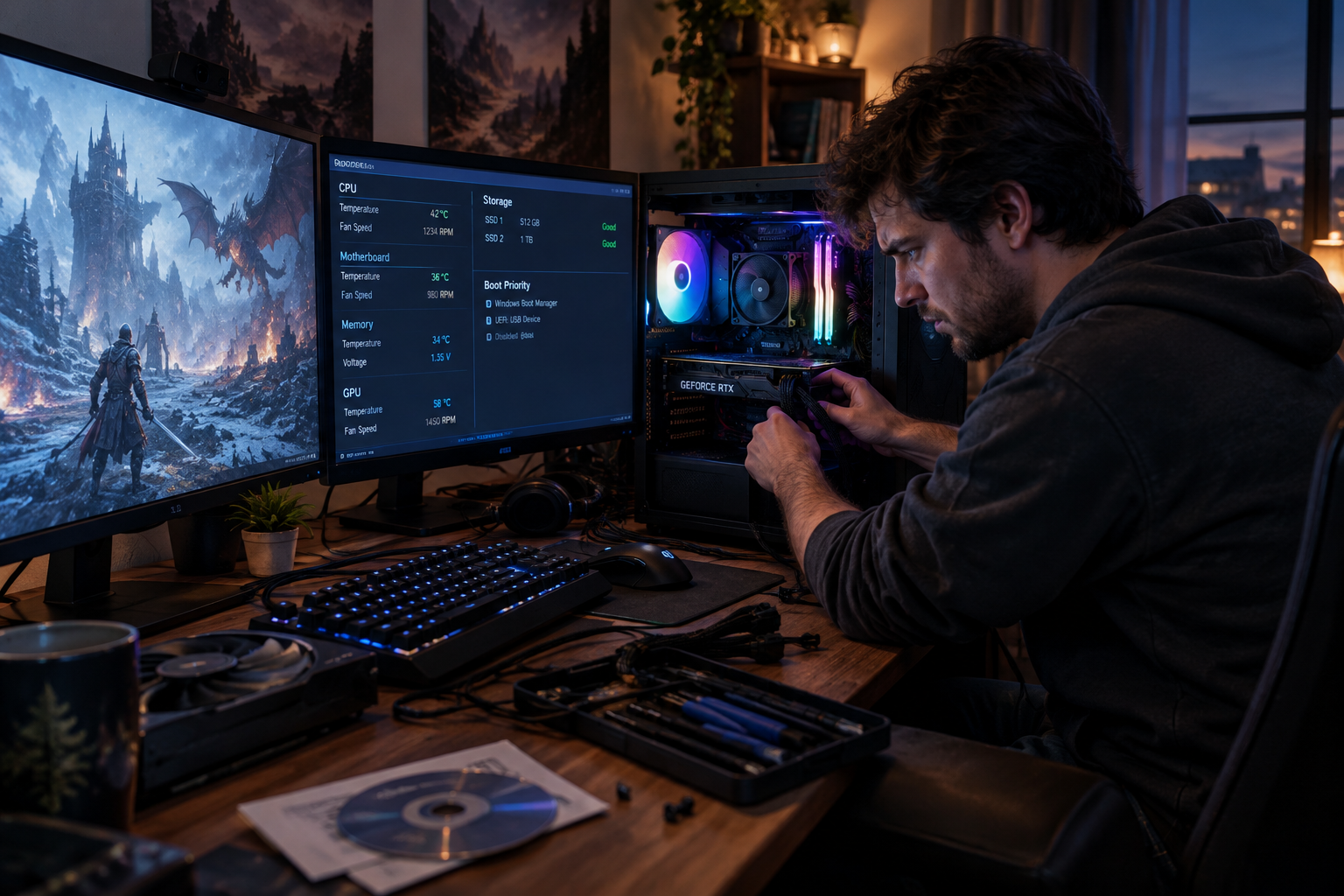
A PC gamer fixing crashes and stutters at a glowing desktop setup
PC gaming can deliver incredible visuals, smooth high frame rates, and deep customization, but it can also expose every weak point in a system. A game that crashes to desktop, stutters during combat, freezes on startup, or refuses to launch at all can turn excitement into frustration fast.
The good news is that most PC gaming stability problems follow patterns. Whether the issue comes from drivers, background software, overheating, corrupted files, unstable settings, or hardware faults, a methodical troubleshooting process usually reveals the cause. This guide walks through the most common reasons games crash, stutter, or fail to open, and shows you how to diagnose and fix them step by step.
Start with a clear symptom check
Before changing settings or reinstalling software, define the exact problem. Many players say a game is “broken” when the underlying issue could be one of several very different behaviors. Identifying the symptom helps you avoid random fixes and saves time.
Common crash and performance symptoms
Look for the closest match to what you are experiencing:
- Crash on launch: The game opens briefly, shows a splash screen, or closes immediately.
- Black screen at startup: The game process starts but no usable display appears.
- Crash after a few minutes: The game loads, then closes during menus or gameplay.
- Hard freeze: The whole system locks up and may require a reboot.
- Stuttering: Frame pacing feels uneven even when average FPS looks fine.
- Shader compilation hitching: Short pauses happen when entering new areas or effects appear.
- Low FPS: The game runs consistently slow, but not necessarily unstable.
- Network lag mistaken for stutter: Rubber banding or delayed input occurs in online games.
Also note when the issue started. Did it appear after a driver update, Windows update, BIOS change, new GPU, RAM overclock, antivirus install, or game patch? A recent change often points directly to the cause.
Verify the basics before deeper troubleshooting
Many launch and crash issues come from simple mismatches or missing prerequisites. Start with the fundamentals before moving into advanced diagnosis.
Check system requirements realistically
Meeting minimum requirements does not guarantee a stable experience, especially at high settings or high resolutions. Compare your CPU, GPU, RAM, storage type, and operating system to the game’s recommended requirements, not just the minimum. If the game heavily relies on SSD streaming and you installed it on an old hard drive, stutter may be expected rather than mysterious.
Confirm available storage space
Low free space can affect patching, shader cache creation, Windows page file behavior, and temporary file operations. Keep healthy free space on both the game drive and the Windows system drive. As a general rule, avoid running either drive nearly full.
Install pending game updates and platform updates
Launchers such as Steam, Epic Games Store, EA app, Ubisoft Connect, Battle.net, and Xbox app often push hotfixes for startup bugs, anti cheat compatibility, and shader compilation problems. Let the game and launcher fully update before testing again.
Reboot the PC
It sounds basic, but a full restart can clear stuck processes, driver state issues, and memory problems. If you have been using sleep or hibernate for days, a clean reboot is especially worthwhile.
Update or clean reinstall graphics drivers
GPU drivers are one of the most common sources of crashes, stutters, display issues, and startup failures. A bad driver install, a problematic new release, or remnants of old drivers can all interfere with games.
Choose the right driver approach
If your problems began after updating your GPU driver, try rolling back to a previously stable version. If the issue has existed for a while or you recently changed graphics cards, perform a clean installation instead of a normal update.
Download drivers directly from NVIDIA, AMD, or Intel. Avoid random third party driver sites. If you are unsure whether a driver issue is involved, check the official Windows bug check reference when system crashes produce blue screens, as it can help identify graphics related failures and other hardware level faults.
Use a clean install when needed
A clean driver install removes leftover profiles and files that can cause conflicts. For stubborn cases, many PC gamers use Display Driver Uninstaller in Safe Mode before reinstalling the latest stable driver. This is especially useful after switching between AMD and NVIDIA cards.
Turn off experimental driver features temporarily
Features such as frame generation, low latency modes, image sharpening, overlays, or per game driver overrides can sometimes cause instability. Reset your GPU control panel settings to default and test the game again.
Repair game files and required runtime components
Corrupted game files are a leading cause of launch failures and random crashes. Verifying installed files should be one of your first steps.
Verify integrity through the launcher
Most launchers include a built in repair or verify function. Use it to scan for damaged or missing files. This often fixes interrupted updates, broken mods, and incomplete installations without requiring a full redownload.
Reinstall common runtime packages
Many games depend on Microsoft Visual C++ Redistributables, DirectX runtime components, .NET, and launcher specific services. If a game crashes immediately with missing DLL errors or silent failure, reinstalling these packages can help. Many games include them in a folder such as _CommonRedist within the installation directory.
Check DirectX and Windows system files
Corrupted system components can prevent games from starting correctly. Open Command Prompt as administrator and run:
sfc /scannowThen run:
DISM /Online /Cleanup-Image /RestoreHealthThese tools can repair damaged Windows files that affect gaming services, drivers, and runtime libraries.
Watch temperatures, power, and hardware stability
If games crash under load, hard freeze, or close after a few minutes, heat and power issues should move near the top of your suspect list. Gaming stresses hardware in ways that normal web browsing or office work does not.
Monitor CPU and GPU temperatures
Use tools such as HWiNFO, MSI Afterburner, or vendor software to watch temperatures, clocks, and power draw while gaming. Modern hardware can run warm, but sustained thermal throttling or sudden shutdowns are warning signs. Dust buildup, poor case airflow, dried thermal paste, or failing fans can all contribute.
Look for signs of PSU instability
A weak or aging power supply can cause black screens, sudden restarts, GPU driver crashes, or game shutdowns under load. If issues only happen in demanding titles and especially after installing a stronger GPU, the PSU may not be delivering stable power.
Remove overclocks and undervolts temporarily
Even a seemingly stable CPU, GPU, or RAM overclock can fail in specific games. Disable XMP or EXPO temporarily, revert GPU overclocks, remove CPU tuning, and test at stock settings. If stability returns, add changes back one at a time.
Memory instability is particularly deceptive because it may only appear during shader compilation, asset streaming, or anti cheat initialization. For deeper testing, review memory troubleshooting guidance and run a proper RAM stability test.
Fix stuttering by separating FPS issues from frame pacing issues
Stutter is not always the same as low performance. A game can average 100 FPS and still feel bad if frame times spike. Solving stutter requires understanding what kind you have.
Different types of stutter
- Shader compilation stutter: Common in modern games, especially after first launch or after a driver update.
- Asset streaming stutter: Often tied to slow storage, low VRAM, or insufficient RAM.
- CPU bottleneck stutter: Happens in open world games, strategy games, or crowded multiplayer matches.
- Background process stutter: Caused by antivirus scans, browser tabs, recording software, or Windows tasks.
- VRR or V Sync mismatch: Poor sync settings can create uneven frame delivery or judder.
Let shader compilation finish
Some games compile shaders on first launch, after patches, or after driver updates. Interrupting this process can lead to repeated hitching. If a game offers a shader precompilation step, let it complete fully before playing.
Install games on an SSD
Open world games and titles with high resolution texture streaming often stutter badly on older hard drives. Moving the game to a SATA SSD or NVMe SSD can reduce asset loading stalls significantly.
Cap frame rate for steadier frame times
Running uncapped can push the GPU to full usage and worsen frame pacing in some systems. Try capping FPS slightly below your display refresh rate, such as 141 FPS on a 144 Hz monitor. This can improve smoothness, reduce heat, and lower power spikes.
Review sync settings
If you have a G Sync or FreeSync compatible display, make sure your refresh settings, monitor connection type, and in game options are aligned. A poor combination of V Sync, VRR, and frame caps can cause stutter or input lag. Test one change at a time rather than toggling everything at once.
Close conflicting background software
Background applications are a frequent cause of launch problems, random crashes, and performance drops. The more software that hooks into a game, the greater the chance of a conflict.
Common offenders
- RGB control suites
- Hardware monitoring overlays
- Game recording and streaming tools
- Discord overlay and other chat overlays
- Third party antivirus or anti ransomware tools
- Motherboard utilities and fan control suites
- VPN clients and network filtering software
- Macro tools and controller remapping software
Perform a clean boot test
A clean boot starts Windows with minimal non Microsoft services and startup apps. If the game works correctly in that state, you likely have a software conflict. Re enable services and startup apps in groups until the problem returns.
Disable overlays first
Overlays are especially notorious for causing crashes on launch or performance instability. Disable overlays from Steam, Discord, GeForce Experience, AMD Software, Xbox Game Bar, MSI Afterburner, and any screen capture tools, then retest.
Address Windows settings that affect game stability
Windows itself can contribute to crashes and poor performance if key settings are misconfigured or if the OS is partially corrupted.
Update Windows, but be strategic
Install important updates, especially those related to stability, security, and hardware compatibility. However, if a crash issue began immediately after a specific Windows update, note the timing and investigate whether that update is known to cause gaming problems.
Check graphics settings in Windows
On laptops and systems with integrated and dedicated graphics, make sure the game is using the high performance GPU. Windows graphics settings and vendor control panels can both influence this behavior.
Review Hardware Accelerated GPU Scheduling and Game Mode
These features can help some systems and hurt others. If stutter or launch issues began after changing them, revert and compare results. There is no universal best setting across all hardware combinations.
Make sure the page file is enabled
Some users disable the page file to save space, but modern games can behave unpredictably without it, even on systems with lots of RAM. Let Windows manage the page file unless you have a specific reason not to.
Resolve launch failures tied to permissions, anti cheat, and security tools
When a game refuses to open or closes instantly, permissions and security layers are often involved.
Run the launcher or game as administrator
This can help when a game cannot write configuration files, install anti cheat components, or access protected folders. Do not leave everything permanently elevated unless necessary, but use it as a test.
Repair or reinstall anti cheat software
Games that use Easy Anti Cheat, BattlEye, Riot Vanguard, or other anti cheat systems may fail to launch if those components are corrupted or blocked. Most games include a repair utility in their installation folder.
Check antivirus quarantine and controlled folder access
Security software can block executables, DLL files, launchers, or save file writes. Review quarantine logs and add exclusions for the game folder and launcher if needed. Windows Security features like Controlled Folder Access can also interfere with some games.
Avoid compatibility mode unless required
Running modern games in old compatibility modes can create more problems than it solves. Only use compatibility settings if the developer specifically recommends them.
Troubleshoot mods, reshades, and custom files
Modded games are more likely to crash, fail to launch, or behave inconsistently after patches. Even harmless looking tweaks can break when the game updates.
Return the game to a clean state
Remove mods, reshade files, custom DLL injectors, script extenders, texture packs, and third party launch tools. Then verify game files to restore originals. If the problem disappears, reintroduce modifications one by one.
Check version compatibility
Many mods depend on specific game versions or loader versions. A mod that worked last month may fail after a patch, even if the game itself is fine.
Investigate event logs and crash data
When basic fixes do not work, logs can reveal patterns that are otherwise invisible. You do not need to be a developer to extract useful clues.
Use Event Viewer and Reliability Monitor
Windows Event Viewer can show application errors, driver faults, and service failures around the time of a crash. Reliability Monitor presents a simpler timeline of crashes and warnings. Look for repeated faulting modules such as GPU drivers, audio drivers, game DLLs, or system runtime components.

Read game specific logs
Many games store logs in Documents, AppData, or the installation directory. Search for files named log, crash, dump, dxdiag, or launcher. Errors related to missing files, unsupported APIs, or failed initialization can point you in the right direction.
Generate a DxDiag report
Running DxDiag can help you collect system information for your own review or when contacting support. It lists driver versions, hardware, and detected issues that may not be obvious from memory alone.
Fix audio, peripheral, and display related crashes
Not every gaming problem is caused by the GPU or CPU. Audio drivers, USB devices, and display chains can also trigger instability.
Update audio drivers
Some games crash during startup when initializing audio devices. If you use USB headsets, DACs, virtual surround software, or motherboard audio enhancements, test with a simpler audio setup.
Disconnect unnecessary USB devices
Flight sticks, steering wheels, capture devices, wireless dongles, and controller adapters can confuse game input detection or trigger startup faults. Disconnect all non essential peripherals and add them back one at a time.
Test different display modes
Borderless windowed, exclusive fullscreen, and windowed mode can behave differently depending on the game and driver. If you get a black screen or alt tab crashes, switch modes. Also test a different cable or port if you suspect signal issues.
Handle laptop specific gaming issues
Gaming laptops add another layer of complexity because power plans, thermals, and hybrid graphics matter more.
Use the correct power mode
Make sure the laptop is plugged in and set to a high performance or best performance mode. Many laptops heavily reduce CPU and GPU performance on battery, which can look like stutter or instability.
Verify the game is using the dedicated GPU
Hybrid graphics can cause launch failures, poor FPS, or strange crashes when the wrong GPU is selected. Set the game to use the high performance GPU in Windows graphics settings and in the vendor control panel if available.
Watch thermals closely
Laptops can hit thermal limits quickly. If performance degrades after a few minutes, overheating may be forcing aggressive throttling. Cleaning vents and elevating the rear of the laptop can help airflow.
Know when storage and memory are the real bottlenecks
Some issues that look like GPU problems are actually caused by insufficient RAM, VRAM pressure, or slow storage.
RAM capacity matters for modern games
While 16 GB is still workable for many titles, newer games and multitasking setups can push beyond that. If you have a browser, voice chat, recording software, and the game all open at once, memory pressure can cause hitching, long loads, or crashes.
VRAM limits can trigger stutter and crashes
If texture quality or ray tracing settings exceed your GPU’s VRAM capacity, the game may stutter heavily, show missing textures, or crash during area transitions. Lower texture resolution, shadow quality, or ray
About the Author